<?xml version="1.0" encoding="UTF-8"?>
<feed xmlns="http://www.w3.org/2005/Atom">
    <title>パワーポイントの使い方</title>
    <link rel="alternate" type="text/html" href="http://powerpoint.pc-technique.jp/" />
    <link rel="self" type="application/atom+xml" href="http://powerpoint.pc-technique.jp/atom.xml" />
    <id>tag:powerpoint.pc-technique.jp,2009-08-21://5</id>
    <updated>2009-08-26T06:55:48Z</updated>
    <subtitle>仕事で使えるパワーポイントの使い方を具体的な例を使って詳しくご紹介しています。</subtitle>
    <generator uri="http://www.sixapart.com/movabletype/">Movable Type Pro 4.261</generator>

<entry>
    <title>オートシェイプ同士をキレイに結ぶ方法</title>
    <link rel="alternate" type="text/html" href="http://powerpoint.pc-technique.jp/autoshapes/autoshapes_02.html" />
    <id>tag:powerpoint.pc-technique.jp,2009://5.63</id>

    <published>2009-08-25T08:51:33Z</published>
    <updated>2009-08-26T06:55:48Z</updated>

    <summary>オートシェイプを使って複数の図形を描いた時、オートシェイプ同士を結び付けたい場合...</summary>
    <author>
        <name>pc-technique</name>
        
    </author>
    
        <category term="オートシェイプ" scheme="http://www.sixapart.com/ns/types#category" />
    
    
    <content type="html" xml:lang="ja" xml:base="http://powerpoint.pc-technique.jp/">
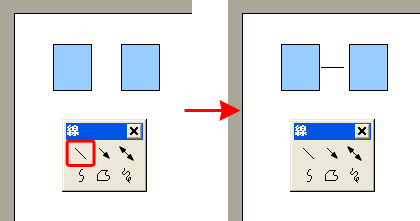
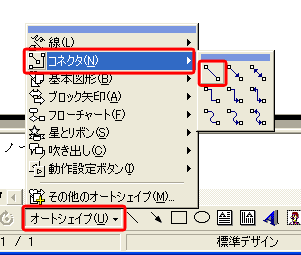
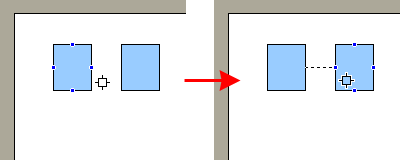
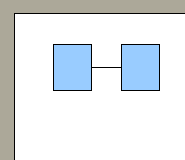
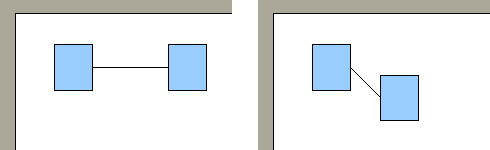
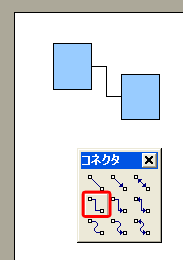
        <![CDATA[オートシェイプを使って複数の図形を描いた時、オートシェイプ同士を結び付けたい場合があります。<br /><br />例えば2つの四角形を直線でつなげたい場合、オートシェイプの「直線」を使って線を描く方が多いのではないでしょうか。<br /><br /><span class="mt-enclosure mt-enclosure-image" style="display: inline;"><img alt="autoshapes02_01.gif" src="http://powerpoint.pc-technique.jp/autoshapes/images/autoshapes02_01.gif" class="mt-image-none" style="" height="221" width="420" /></span><br /><br /><br />しかしこの場合は、直線の長さや位置を調整するのに時間がかかったりします。<br /><br />そこでオススメなのがオートシェイプの「コネクタ」です。<br /><br /><br />・オートシェイプから「コネクタ」－「直線コネクタ」をクリックします。<br /><br /><span class="mt-enclosure mt-enclosure-image" style="display: inline;"><img alt="autoshapes02_02.gif" src="http://powerpoint.pc-technique.jp/autoshapes/images/autoshapes02_02.gif" class="mt-image-none" style="" height="255" width="301" /></span><br /><br /><br />・マウスポインタを左側の四角形に近づけると、四角形の辺の所に青い点が表示されるので、右端をクリックし、続けて右側の四角形の左端の青い点をクリックします。<br /><br /><span class="mt-enclosure mt-enclosure-image" style="display: inline;"><img alt="autoshapes02_03.gif" src="http://powerpoint.pc-technique.jp/autoshapes/images/autoshapes02_03.gif" class="mt-image-none" style="" height="160" width="400" /></span><br /><br /><br />・2つの四角形が直線で結び付けられました。<br /><br /><span class="mt-enclosure mt-enclosure-image" style="display: inline;"><img alt="autoshapes02_04.gif" src="http://powerpoint.pc-technique.jp/autoshapes/images/autoshapes02_04.gif" class="mt-image-none" style="" height="160" width="185" /></span><br /><br /><br />・この「コネクタ」は何が便利かというと、四角形を動かしても結び付けた直線は切れず、自動的に移動する点です。<br /><br /><span class="mt-enclosure mt-enclosure-image" style="display: inline;"><img alt="autoshapes02_05.gif" src="http://powerpoint.pc-technique.jp/autoshapes/images/autoshapes02_05.gif" class="mt-image-none" style="" height="150" width="490" /></span><br /><br /><br />・「コネクタ」には矢印のものやカギ型のものがありますので、是非試してみてください。<br />カギ型は会社の組織図などを作成する際に便利です。<br /><a href="autoshapes_01.html">「オートシェイプを揃える方法」</a>と合わせて使うとキレイに配置できます。<br /><br /><span class="mt-enclosure mt-enclosure-image" style="display: inline;"><img alt="autoshapes02_06.gif" src="http://powerpoint.pc-technique.jp/autoshapes/images/autoshapes02_06.gif" class="mt-image-none" style="" height="260" width="183" /></span><br /><br /> 

<script type="text/javascript"><!--
google_ad_client = "pub-6413681884369933";
/* レクタングル （大） （336x280）powerpoint */
google_ad_slot = "9501510883";
google_ad_width = 336;
google_ad_height = 280;
//-->
</script>
<script type="text/javascript" src="http://pagead2.googlesyndication.com/pagead/show_ads.js">
</script>

<br /><br />

<a href="autoshapes_01.html">■オートシェイプを揃える方法</a><br />
■オートシェイプ同士をキレイに結ぶ方法　（現在のページ）<br />

<br /><br />]]>
        
    </content>
</entry>

<entry>
    <title>オートシェイプを揃える方法</title>
    <link rel="alternate" type="text/html" href="http://powerpoint.pc-technique.jp/autoshapes/autoshapes_01.html" />
    <id>tag:powerpoint.pc-technique.jp,2009://5.61</id>

    <published>2009-08-24T09:11:14Z</published>
    <updated>2009-08-26T06:24:18Z</updated>

    <summary>パワーポイントではオートシェイプを使って図形を描くことができます。オートシェイプ...</summary>
    <author>
        <name>pc-technique</name>
        
    </author>
    
        <category term="オートシェイプ" scheme="http://www.sixapart.com/ns/types#category" />
    
    
    <content type="html" xml:lang="ja" xml:base="http://powerpoint.pc-technique.jp/">
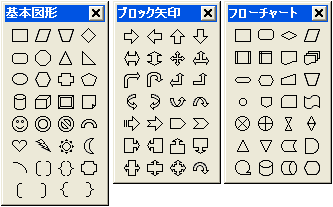
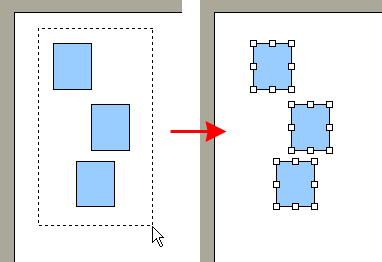
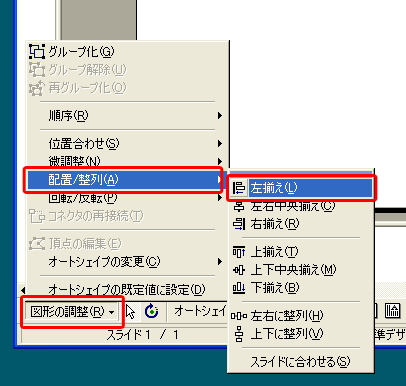
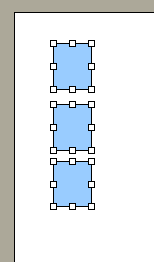
        <![CDATA[パワーポイントではオートシェイプを使って図形を描くことができます。<br />オートシェイプとはワードやエクセル、パワーポイントなどにある図形描画機能のことで、様々な種類の形があります。<br /><br /><span class="mt-enclosure mt-enclosure-image" style="display: inline;"><img alt="autoshapes01_01.gif" src="http://powerpoint.pc-technique.jp/autoshapes/images/autoshapes01_01.gif" class="mt-image-none" style="" height="207" width="333" /></span><br /><br /><br />このオートシェイプを使って図形を描いていくわけですが、いくつかの図形をキレイに揃えようと思ってもなかなかうまくいかなかったり、一つひとつの位置を微調整するのも時間だけがかかってしまいます。<br /><br />そんな時に使えるのが「配置／整列」です。<br /><br /><br />・まず揃えたい複数のオートシェイプをマウスをドラッグして選択します。<br />または「Shift」キーを押しながらオートシェイプをクリックしても複数のオートシェイプを選択することができます。<br /><br /><span class="mt-enclosure mt-enclosure-image" style="display: inline;"><img alt="autoshapes01_02.gif" src="http://powerpoint.pc-technique.jp/autoshapes/images/autoshapes01_02.gif" class="mt-image-none" style="" height="262" width="382" /></span><br /><br /><br />・複数のオートシェイプが選択された状態で画面左下の「図形の調整」－「配置／整列」－「左揃え」をクリックします。<br /><br /><span class="mt-enclosure mt-enclosure-image" style="display: inline;"><img alt="autoshapes01_03.gif" src="http://powerpoint.pc-technique.jp/autoshapes/images/autoshapes01_03.gif" class="mt-image-none" style="" height="386" width="406" /></span><br /><br /><br />・するとオートシェイプが全て左揃えになります。<br /><br /><span class="mt-enclosure mt-enclosure-image" style="display: inline;"><img alt="autoshapes01_04.gif" src="http://powerpoint.pc-technique.jp/autoshapes/images/autoshapes01_04.gif" class="mt-image-none" style="" height="262" width="154" /></span><br /><br /><br />「左揃え」以外にも「左右中央揃え」「右揃え」「上揃え」「上下中央揃え」「下揃え」「左右に整列」「上下に整列」といった揃え方があるので、是非試してみてください。<br />どれも一瞬で揃えることができるのでとても便利です。<br /><br /> 

<script type="text/javascript"><!--
google_ad_client = "pub-6413681884369933";
/* レクタングル （大） （336x280）powerpoint */
google_ad_slot = "9501510883";
google_ad_width = 336;
google_ad_height = 280;
//-->
</script>
<script type="text/javascript"
src="http://pagead2.googlesyndication.com/pagead/show_ads.js">
</script>

<br /><br />

■オートシェイプを揃える方法　（現在のページ）<br />
<a href="autoshapes_02.html">■オートシェイプ同士をキレイに結ぶ方法</a><br />

<br /><br />]]>
        
    </content>
</entry>

<entry>
    <title>スライドの向きを変更する方法</title>
    <link rel="alternate" type="text/html" href="http://powerpoint.pc-technique.jp/slide/slide_01.html" />
    <id>tag:powerpoint.pc-technique.jp,2009://5.58</id>

    <published>2009-08-21T02:00:10Z</published>
    <updated>2009-08-26T06:21:57Z</updated>

    <summary>パワーポイントを起動してスライドを表示させると、基本的には横向きのスライドが表示...</summary>
    <author>
        <name>pc-technique</name>
        
    </author>
    
        <category term="スライド" scheme="http://www.sixapart.com/ns/types#category" />
    
    
    <content type="html" xml:lang="ja" xml:base="http://powerpoint.pc-technique.jp/">
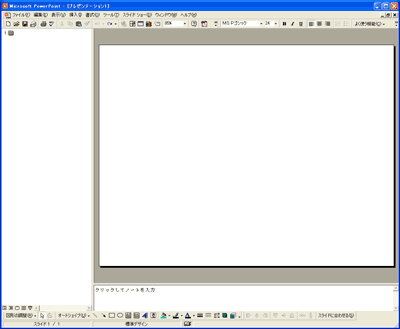
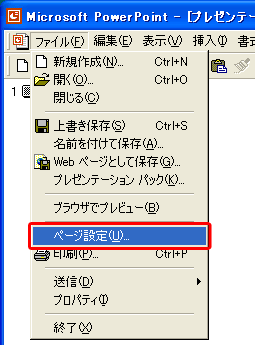
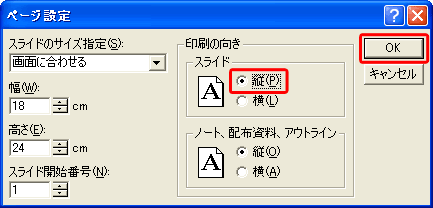
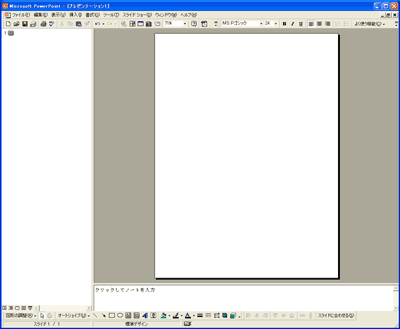
        <![CDATA[パワーポイントを起動してスライドを表示させると、基本的には横向きのスライドが表示されると思います。<br /><br /><span class="mt-enclosure mt-enclosure-image" style="display: inline;"><img alt="スライドの向きを変更する方法" src="http://powerpoint.pc-technique.jp/slide/images/slide01_01.gif" class="mt-image-none" style="" height="329" width="400" /></span><br /><br /><br />でも縦向きにして資料を作りたい時もありますよね。<br />ということでスライドの向きを横から縦に変更する方法です。<br /><br />・ツールバーから「ファイル」－「ページ設定」をクリックします。<br /><br /><span class="mt-enclosure mt-enclosure-image" style="display: inline;"><img alt="スライドの向きを変更する方法" src="http://powerpoint.pc-technique.jp/slide/images/slide01_02.gif" class="mt-image-none" style="" height="345" width="255" /></span><br /><br /><br />・スライドの向きを横から縦にチェックをして「OK」ボタンをクリックします。<br /><br /><span class="mt-enclosure mt-enclosure-image" style="display: inline;"><img alt="スライドの向きを変更する方法" src="http://powerpoint.pc-technique.jp/slide/images/slide01_03.gif" class="mt-image-none" style="" height="208" width="433" /></span><br /><br /><br />・スライドの向きが横から縦に変更されました。<br />縦→横に変更する場合も同様の手順です。<br /><br /><span class="mt-enclosure mt-enclosure-image" style="display: inline;"><img alt="スライドの向きを変更する方法" src="http://powerpoint.pc-technique.jp/slide/images/slide01_04.gif" class="mt-image-none" style="" height="329" width="400" /></span>

<br /><br /> 

<script type="text/javascript"><!--
google_ad_client = "pub-6413681884369933";
/* レクタングル （大） （336x280）powerpoint */
google_ad_slot = "9501510883";
google_ad_width = 336;
google_ad_height = 280;
//-->
</script>
<script type="text/javascript"
src="http://pagead2.googlesyndication.com/pagead/show_ads.js">
</script>]]>
        
    </content>
</entry>


</feed>